App Store · Purchase and installation
Shadowrocket Download
and App Verification
A paid app with a one-time purchase, available only on the App Store. Verify the developer, official icon, and app ID before buying. After installation, configure the app with your existing subscription or server details.
- Developer Shadow Launch Technology Limited
- App ID 932747118
- $2.99 one-time purchase
- For iPhone and iPad
Price shown for the US storefront. Other storefronts display local currency. Check the App Store page for the actual price, device compatibility, and system requirements.
Store and account region: check availability first
Shadowrocket isn't available in the mainland China storefront. If the product page says it's unavailable in your country or region, check the Apple ID used for App Store purchases instead of repeatedly searching for the app. Your Apple ID's country or region determines which store you see. This page links to the US storefront, but the region in the URL won't change your account's store or update its region settings.
To check, go to Settings → Apple ID → Media & Purchases → View Account → Country/Region. Some system interfaces call Apple ID an Apple Account, and item names may vary by system language and version. Authenticate as prompted, then check the country or region. Make sure you're checking the account used for Media & Purchases; your device language, regional formats, and time zone don't determine your storefront.
To change your region, use the official account settings
The Country/Region page is also where you can check or change your store region. If you plan to change it, read the requirements shown on that page before continuing. Your account balance, active subscriptions, Family Sharing status, or payment details may affect the process; follow the instructions shown in your Apple Account. This guide explains where to go but can't guarantee every account can change regions, and doesn't recommend skipping account prompts you don't understand just to make a purchase.
After confirming your region, reopen the same Shadowrocket product page. A web page displaying the app doesn't mean your account can purchase it; check availability and the confirmation screen in the App Store. If the store asks you to resolve a billing or payment issue, do so in your Apple Account first. Recording the exact message makes it easier to identify the issue than repeatedly switching networks or tapping Buy.
This is the official Shadowrocket website and manual, with purchase verification and installation guidance. Purchases are completed in the App Store, and the main button on this page opens the product listing. Once there, verify the three details below; don't rely on search ranking or a similar app name when deciding what to buy.
Before you buy
Verify the app: check all three details
Shadowrocket may appear under similar names or with similar icons in search results. Open the product page and verify the developer, icon and app ID together before buying.
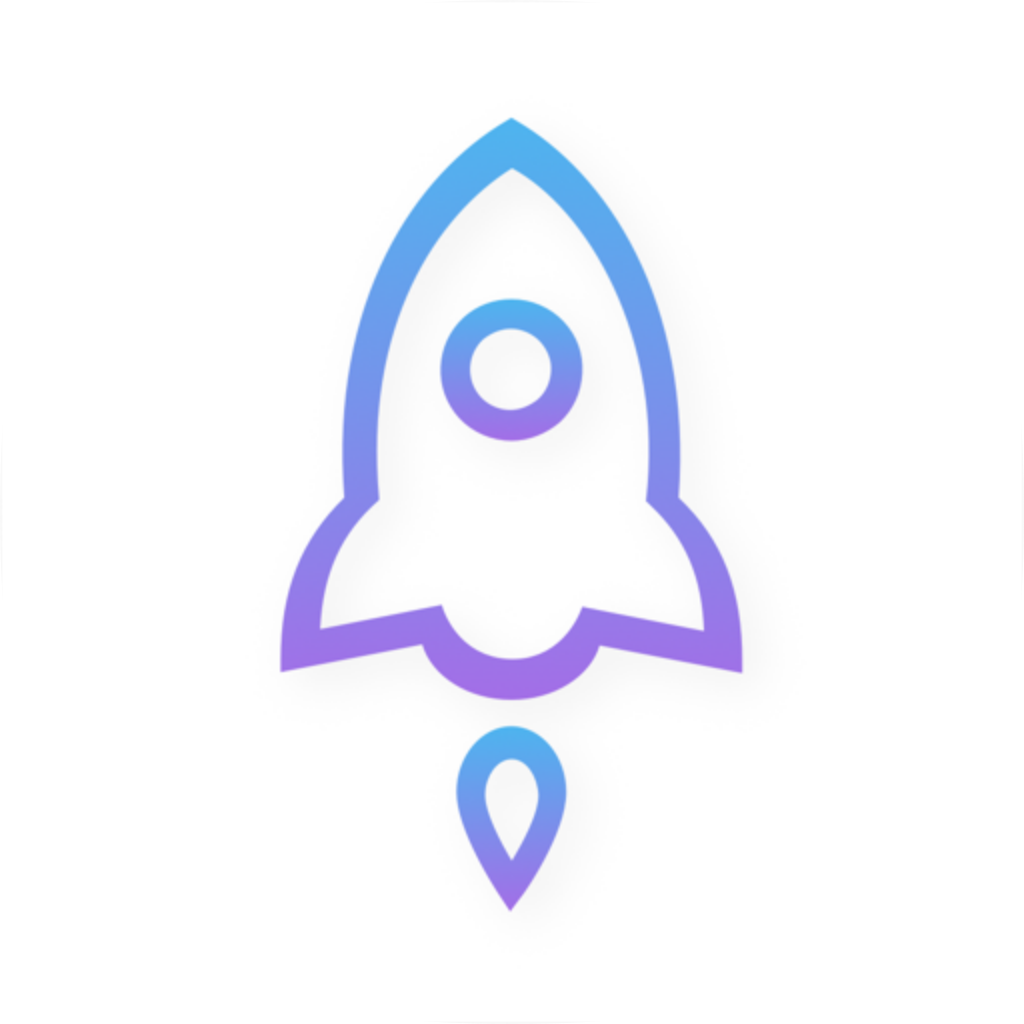
Official app icon
- Developer: Check the developer or provider listed on the App Store product page. It should be Shadow Launch Technology Limited. The full name is more distinctive than a short title in search results; don't verify it by checking just one word.
- Official icon: Compare it with the blue-and-purple outlined rocket on a white background shown on this page. Use the icon as an additional check alongside the developer and app ID; similar colors alone aren't enough to confirm the app.
- App ID: The product link on this page ends with
id932747118. The app ID to verify is 932747118. When sharing or copying the product page link, make sure it still points to this app rather than relying on the app name in the URL.
After installation, compare the interface with the official screenshots
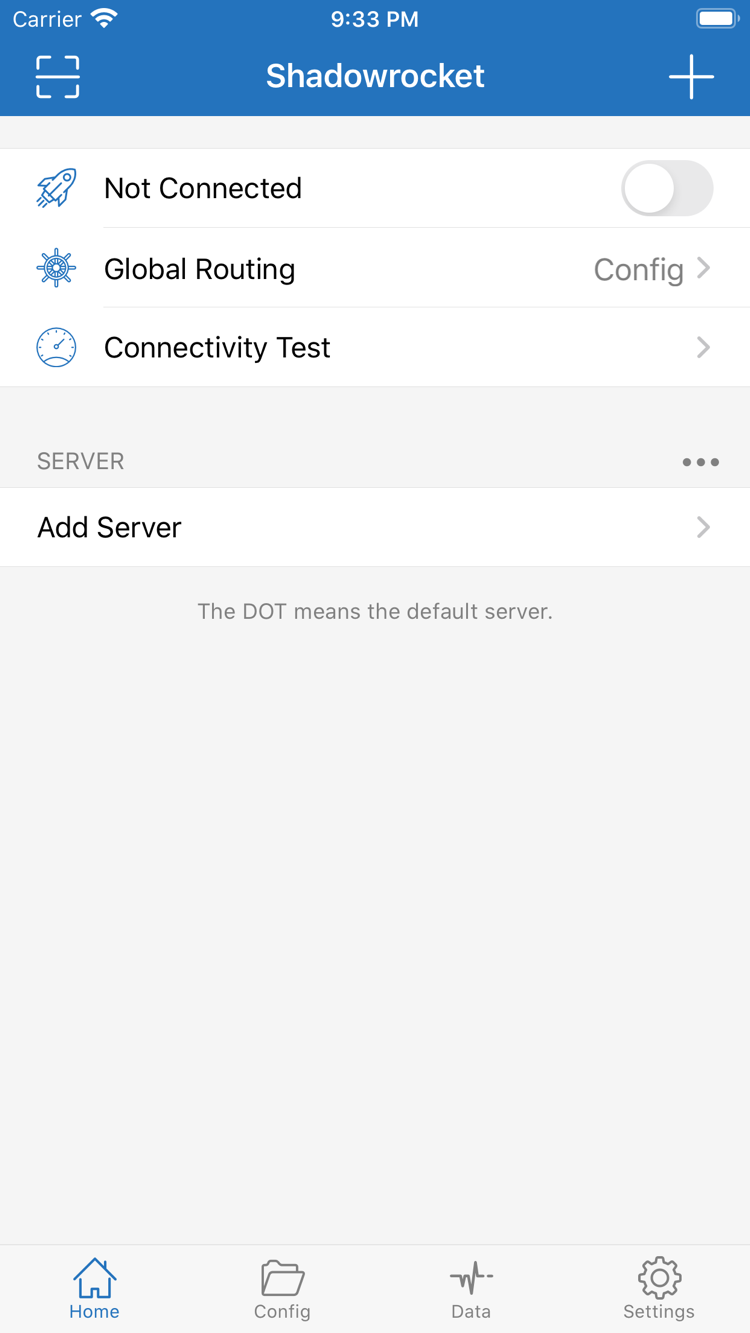
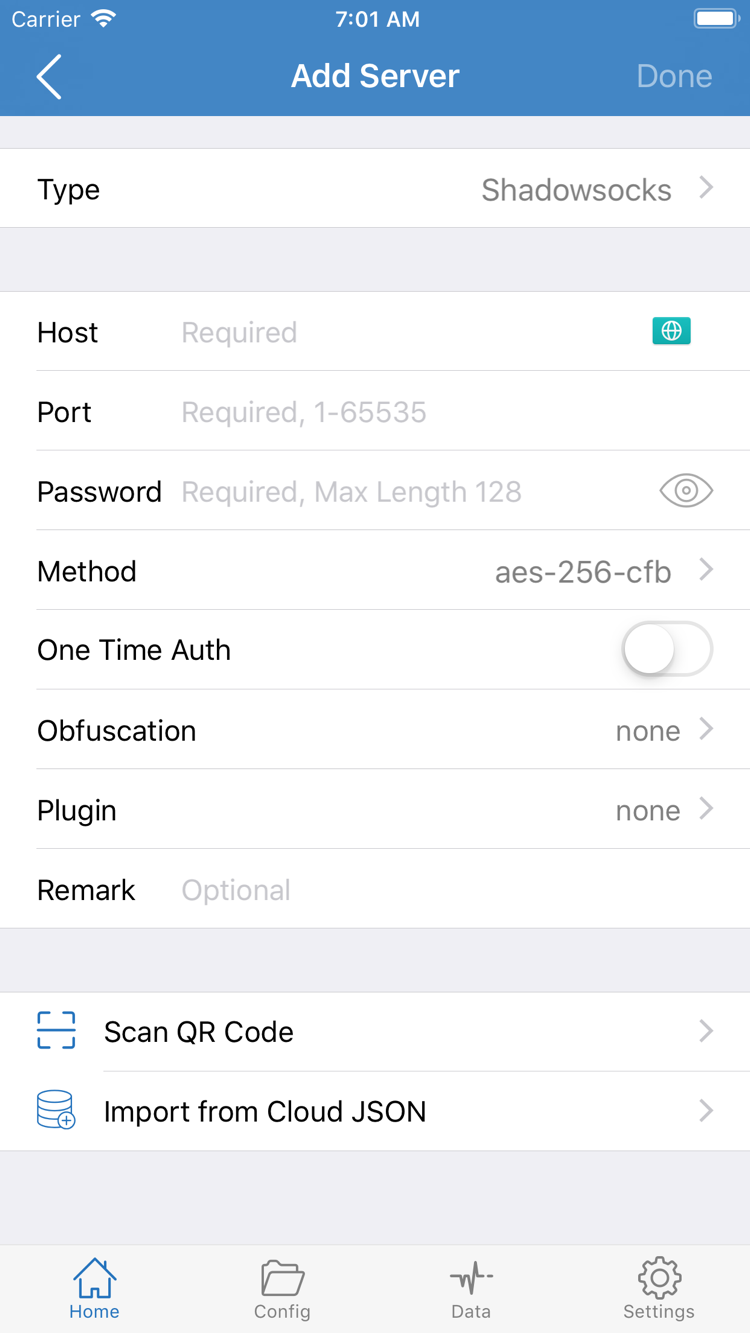
The two images on the right are official App Store screenshots uploaded by the developer. The Home screen shows Not Connected, Global Routing, Connectivity Test, the SERVER group, and the Add Server option. The Add Server screen shows fields such as Type, Host, Port, Password, and Method.
The entries and fields in the screenshots illustrate the interface; they aren't connection details you can use as-is. Available fields depend on the selected type, and the layout may change with app updates. To confirm you've found the right app, prioritize the three checks above rather than expecting every label to match the screenshots exactly. Verify the app first, then configure it with your own details to keep purchase issues separate from connection issues.
Device guide / 01
iPhone: purchase, first launch, and system permissions
Open this page's App Store product listing on your iPhone. After verifying the three details, check device compatibility and price, then confirm the purchase as prompted. Check the App Store page for system requirements; don't rely on screenshots here, figures from old guides, or the fact that the app installed on another device. If the button shows a cloud icon for redownloading, first check whether you already have a purchase record rather than looking for another app with a similar name.
After installation, open Shadowrocket from the Home Screen. First launch and first connection are separate steps: reaching the Home screen means the app is running, but connecting requires your own subscription or server details. Get your subscription link from your provider. For import steps, see the beginner's guide; for field-by-field instructions, see the subscription manual.
A VPN configuration prompt isn't a purchase confirmation
When you first start a connection, the system may ask permission to add a VPN configuration. This system permission is needed to manage network connections on the device; it isn't another purchase or proof that a subscription is active. Make sure the prompt appears while you're taking an action in Shadowrocket, then read the system message and follow its instructions. Whether authentication is required depends on your device settings. Keep App Store payment, importing into the app, and system authorization as separate steps.
After granting permission, return to Home and check the selected item, then review the current Global Routing setting. Config, Proxy, and Direct are distinct modes; a toggle's state alone doesn't mean all requests will follow the same route. You don't need to change On Demand during purchase and installation. First follow the tutorial to complete a repeatable manual connection, then consider automatic connection conditions.
If the App Store download is stuck on Waiting or its progress hasn't changed, check available storage and your network, then look for account prompts in the App Store. Changing subscription or server details won't fix a download that hasn't finished. Complete the store process first, then troubleshoot in the app.
Device guide / 02
iPad: install using the same purchase
A single purchase with the same Apple ID lets you install Shadowrocket on compatible iPhone and iPad devices. On your iPad, check which account is used for Media & Purchases, then look in Purchased or open the same product page. Check the App Store page for system requirements. Sharing an account doesn't make an incompatible device eligible for installation, so review the store listing before trying again.
The iPad's larger screen may display lists and details differently from the iPhone, but look for labels such as Home, Add Server, and Config. Don't buy again just because a control appears in a different place than in a phone screenshot. Confirm the app and purchase record first, then find the appropriate setting in the interface you have.
Keep the app purchase record and connection configuration in mind as separate things. After installing on your iPad, check whether the configuration you need is already there. If not, import your own subscription or server details and review the routing mode. Don't assume that every entry, toggle state, or local change from another device will appear automatically. For connection limits when using two devices at once, check with your provider; the app purchase doesn't determine how the service allows you to connect.
Compatibility with Mac, Apple TV, and Apple Vision
The compatibility section on the same App Store listing also includes Mac, Apple TV, and Apple Vision. If you plan to use the app on one of these devices, open the same product page on that device. Compatibility, system requirements, and whether the purchase is universal are determined by the App Store listing. Get the app from the App Store; don't assume the iPhone and iPad steps in this guide apply to other devices.
If the purchase status on the product page differs from what you expected, check the store account, region, and compatibility details on the target device before confirming the purchase. Don't assume another device will show the same status just because it displays a particular price or button.
New device or reinstall: find your purchase, then restore your setup
Sign in with the Apple ID used for the original purchase and redownload Shadowrocket from the App Store's purchased items without paying again. Go to App Store → Account → Purchased to find it. Some system versions list purchased apps under a different section; names and menus vary by interface. Before searching for the app, make sure the account used for Media & Purchases matches the one used for the original purchase.
- On your new device, open the App Store account page and check which store account is signed in. Account details used for other Apple services on the device don't replace this check.
- Open Purchased, find Shadowrocket, and check the developer, official icon, and app ID again. Choose to redownload and wait for the App Store installation to finish.
- After the first launch, check the items stored on the device. If needed, import your own subscription or server details, then review Config, Global Routing, and connection permissions.
- Test the connection with a familiar use case and confirm that the routing behaves as expected. An app being restored doesn't mean its connection configuration has also been fully restored.
Already bought it? Why do I still see a price?
Pause before confirming another payment, and check your account and original purchase record. Common things to check include whether the account used for Media & Purchases has changed, whether you're on the correct product page, whether the app is hidden in your purchased items, and whether it's still available in your current region. The button reflects the current page status, not your purchase history. If the purchase record and store status don't match, check your purchase history and support options in your Apple Account.
Before changing devices, make a note of your current setup, including which items are maintained by subscription updates and which were entered manually or changed locally. Backups may contain connection credentials; keep them somewhere you control rather than posting them on public pages or in public images. After importing again, check that server fields, configuration files, and rules match your current needs, especially settings changed only on the old device.
Family Sharing eligibility depends on the App Store listing and the actual status of your account. Personal purchase records, items available through a family group, and app configuration are separate things; joining a family group doesn't guarantee that the same local configuration can be restored on every device.
Price and purchase: you're buying the client
Shadowrocket costs $2.99 as a one-time purchase in the US storefront. Other storefronts display local currency; check the App Store page and payment confirmation for the actual price. The client is paid for once, with no monthly client fee. Don't assume the US price applies in other storefronts, and check the amount currently shown by the store before paying.
Buying the client lets you install and use Shadowrocket on your device. Whether your connection details work, your service is active, or multiple devices are allowed depends on your existing service. Check these separately: an App Store purchase doesn't mean your subscription is active, and working details from your provider don't replace the app purchase record.
Purchased, installed, and connected are three different states
“Purchased” can be checked in your store history. “Installed” means the app opens on your device. “Connected” also depends on configuration, permissions, and current network conditions. When something goes wrong, first identify the stage: if the store can't complete the transaction, check your account and device; if the app opens but has no entries, import your details; if an entry is present but can't connect, check its settings, routing, and network.
App updates are also delivered through the App Store. Manage automatic updates in your device's store settings or check for updates in the App Store. Check the store page for update history, the current version, and system requirements. Updating the app and updating a Subscribe subscription are different: the former updates the client, while the latter refreshes the contents of your existing service entries.
If you only want to verify that you're buying the right app, check the three details, price, and compatibility. After purchase, follow the beginner's guide to import your own details; there's no need to adjust complex rules before installation. Keeping the store, app, and connection service separate makes restoring a purchase and troubleshooting easier.
Download and purchase FAQs
Why can't I find Shadowrocket in the App Store?
Shadowrocket isn't available in the mainland China storefront. Your Apple ID's country or region determines which store you see; the us in a web link won't change your account's region. Check the country or region under Media & Purchases in Settings, then see whether the product page is available.
What if the product page opens but the download won't complete?
Note the exact App Store message, then check your store account, device compatibility, available storage, and network in turn. Resolve billing or payment prompts in your Apple Account. Check the App Store page for system requirements and availability, and avoid repeatedly attempting the purchase.
Do I have to pay again when I replace my device or reinstall Shadowrocket?
Sign in with the Apple ID used for the original purchase, then find Shadowrocket in your App Store account's purchased items and download it again without paying. If the page still shows a price, first check the account used for Media & Purchases and confirm the original purchase record before proceeding.
Can I install it on my iPad if I bought it on my iPhone?
Yes. One purchase with the same Apple ID lets you install Shadowrocket on compatible iPhone and iPad devices. Check the App Store page for system requirements. Installing the app doesn't restore your configuration, so you'll still need to check and import your own subscription or server details on your iPad.
Can I install it on Mac, Apple TV, or Apple Vision?
The compatibility section on the same App Store product page lists Mac, Apple TV, and Apple Vision. Check the store page on your target device. Compatibility, system requirements, and whether the purchase is universal are determined by the App Store listing. The App Store remains the place to get the app.
How do I read the official screenshots and the app's English interface?
The screenshots on this page are the English images uploaded by the developer to the App Store. Home is the main screen, Add Server opens the server setup, Config is configuration, Global Routing controls global routing, and Subscribe is where you access subscriptions. This guide keeps these English labels and explains them alongside; follow the beginner's guide for your first setup.
Finished installing? Continue with the beginner's guide →; to check import fields, see the subscription manual →.